Shopify
Connect a Shopify store to v0 and build storefronts that read live products, prices, and inventory from the Shopify Storefront and Admin APIs.
The Shopify integration lets you build online stores in v0 that are backed by a real Shopify store. When you describe an e-commerce app, v0 connects a Shopify store, creates your products and their images in Shopify, and generates a storefront that reads them live through the Shopify Storefront API.
Because the storefront is a full app you generate, it isn't limited to a standard product grid. You can build any shopping experience on top of a real catalog. People have shipped everything from a production sneaker store to a storefront you play like a game, where you walk around, step into shops, and buy real products.
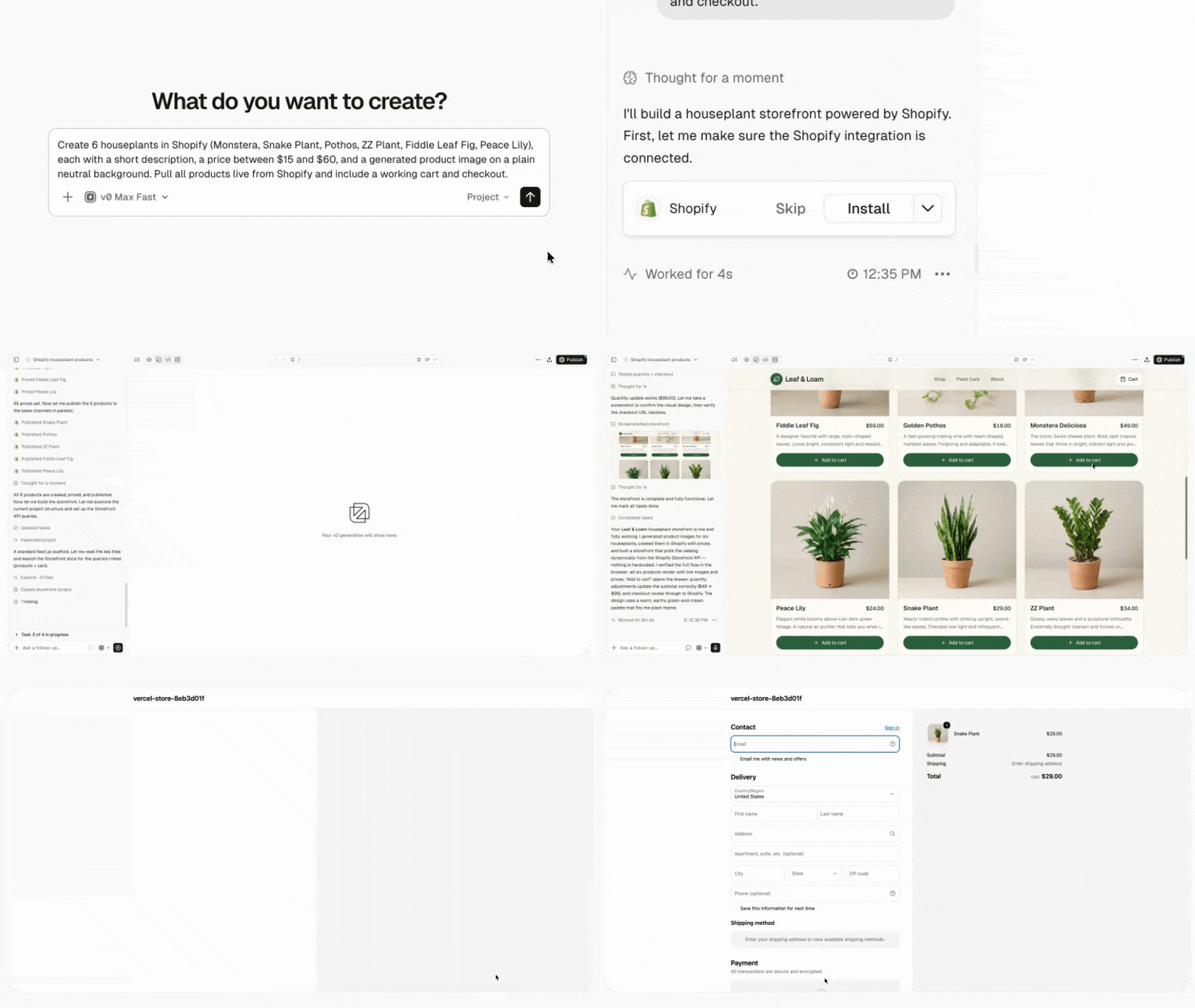
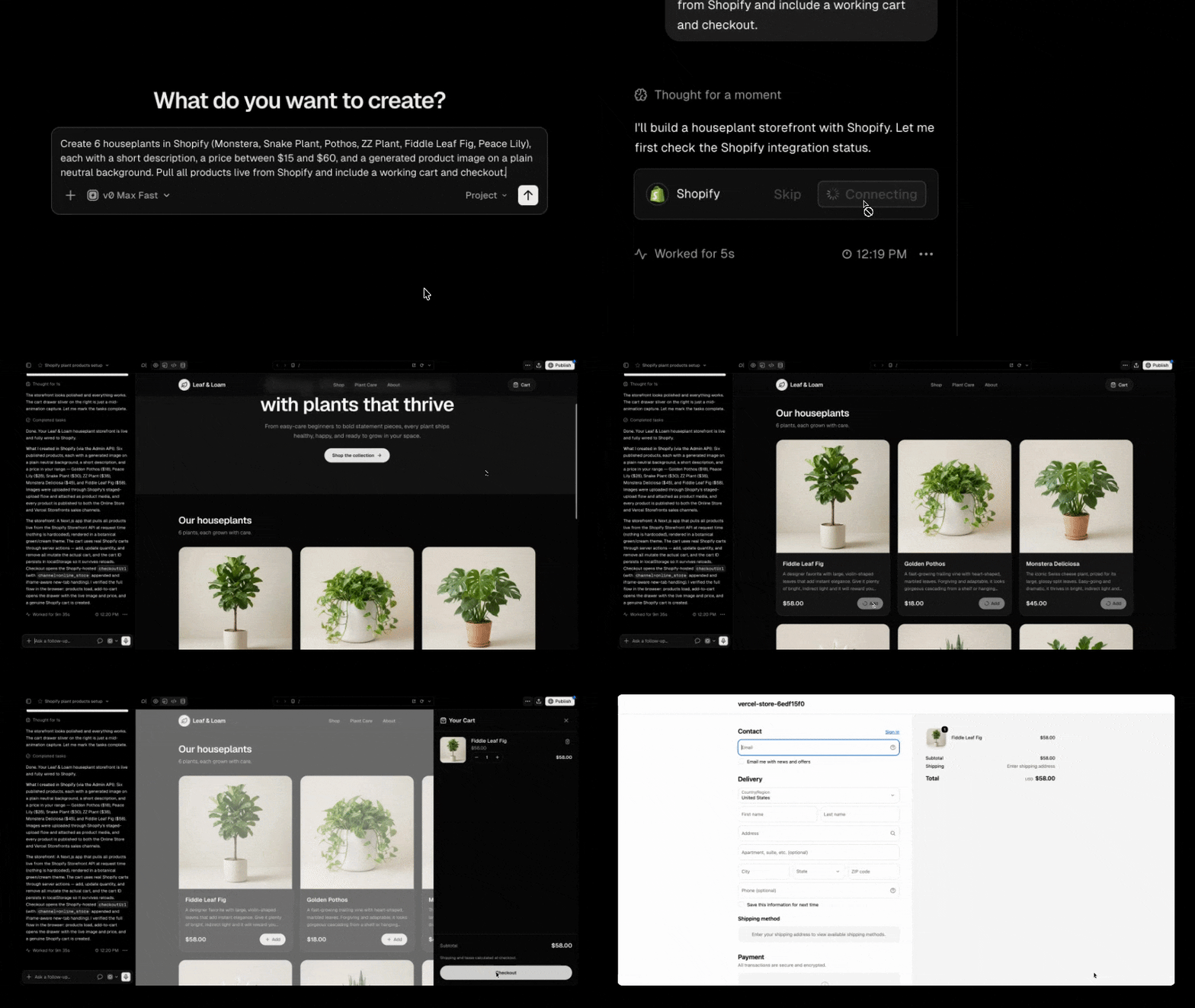
What v0 builds with Shopify
When Shopify is connected, v0 always generates a storefront application backed by your Shopify catalog. The storefront is the primary deliverable, and v0 wires it to your store end to end:
- Products live in Shopify, not in your code. v0 creates products through the Shopify Admin API and adds them to the Vercel Storefront sales channel. It never hardcodes product names, prices, or descriptions into the app.
- Product images are generated and uploaded to Shopify. v0 generates an image for each product and stores it on the product in Shopify, so your catalog stays the single source of truth.
- The storefront reads products at runtime. The generated app fetches products from the Shopify Storefront API when it renders, so it stays in sync with your Shopify catalog as products change.
Start building a store
v0 installs the Shopify integration automatically when your prompt describes an online store. Phrases like "build a storefront", "build an online store", or "sell products online" all trigger it.
Build an online store that sells handmade ceramic mugs. Create a few products with prices and images.v0 provisions a Shopify development store, creates your products in it, and connects it to your project so the storefront can read the catalog. You can start building right away without configuring anything in Shopify first.
The Shopify AI Toolkit
v0 works with your store through the Shopify AI Toolkit, which uses two Shopify APIs:
- Admin API for managing the store, including creating products, uploading product images, and managing collections.
- Storefront API for reading the catalog and running cart and checkout in the generated app.
You interact with the toolkit through prompts. Ask v0 to add or change products and it makes the change in Shopify, then updates the storefront to match.
Go live with a paid store
By default your app uses a Shopify development store. Development stores are for building and testing, and they can't take real orders until you claim them and choose a Shopify plan.
When you publish an app that's connected to an unclaimed development store, v0 adds a Commerce mode step to the publish flow. To go live with real orders and payments:
- Publish your app. When the app uses a development store, the publish flow shows a Commerce mode step.
- Under Shopify Dev Mode, select Claim Store. This opens Shopify in a new tab.
- Complete the claim on Shopify and choose a plan.
You can also select Continue to publish while keeping the development store. Until you claim it, the published app keeps using the development store and can't take real orders.
Connect your Shopify account
After you claim a store, actions that v0 takes on your behalf through the Admin API, such as managing products and orders, require you to authorize your own Shopify account. When that authorization is needed, v0 shows a Connect Shopify card inline in the chat.
Select Connect Shopify account and complete the Shopify authorization. v0 continues the step once you're connected.
If v0 asks you to connect your Shopify account, use the inline Connect Shopify account button. You don't need to open Settings, disconnect and reconnect, start a new chat, or contact support.
Best practices
- Describe the store and its products. v0 creates the products in Shopify for you, so tell it what you're selling instead of pasting placeholder data.
- Let v0 own the catalog. Ask v0 to add or edit products rather than hardcoding them into the app, so the storefront and your Shopify store stay in sync.
- Iterate on the storefront and the catalog together. You can change product details, add collections, and adjust the storefront layout in the same chat.
Example prompts:
Add three more products to the store, each with an image and a short description.Regenerate the image for the ceramic mug so it looks more minimal and studio-lit.Create a "Featured" collection and show it on the homepage.Troubleshooting
v0 asks me to connect my Shopify account
This is expected for a claimed store. Some Admin API actions need per-user authorization. Select Connect Shopify account on the inline card and complete the Shopify authorization, then let v0 retry the step.
My storefront shows no products
The storefront reads products from Shopify at runtime, so it only shows products that exist in the store and are on the Vercel Storefront sales channel. Ask v0 to create the products, or confirm they're published to that sales channel in your Shopify admin.
Checkout shows a "Password required" page
Shopify development stores are password protected. v0 builds checkout links that open the online store checkout, so checkout works while the store is still protected. If you see a "Password required" page at checkout, ask v0 to rebuild the checkout link so it opens the online store checkout.
Environment variables
When v0 connects a store, it sets these environment variables in your project. You don't need to configure them, v0 manages them for you.
| Variable | Description |
|---|---|
SHOPIFY_STORE_DOMAIN | The hostname of the connected Shopify store. |
SHOPIFY_STOREFRONT_ACCESS_TOKEN | The Storefront API access token the app uses to read products at runtime. |
The Storefront access token is scoped to public storefront reads. v0 handles Admin API operations (creating products, uploading images, managing collections) during generation, so keep admin credentials out of client-side code.